

Appearance
Schedule Future Content for Static Sites
This recipe explains how to schedule content to be published for a future date for a statically generated site.
Author: Bryant Gillespie
d9 Version: 9.21.2
Explanation
This recipe explains how to schedule content to be published on a future date for a statically generated site (SSG).
We'll be using Flows to publish articles when the current date matches the published date.
First we'll schedule a flow to run at regular intervals.
Next we'll check the timestamps of items with our content collection. And we'll update those the status of those items whenever the published date is less than or equal the current timestamp.
Last, we'll kick off a new deployment of your static site at your hosting provider using one of the recipes below.
- Triggering a static site build at Netlify
- Triggering a static site build at Vercel
Note
If your site fetches content at runtime or at the time of a page request, please follow the recipe for dynamic sites.
How-To Guide
Requirements
You’ll need to have already created a collection for your site content like articles or posts or pages with a field status that controls the published state.
Add a Field to Control Publish Date and Time
Under Settings, go to Data Model.
Choose your content Collection.
Add a new field to your content Collection.
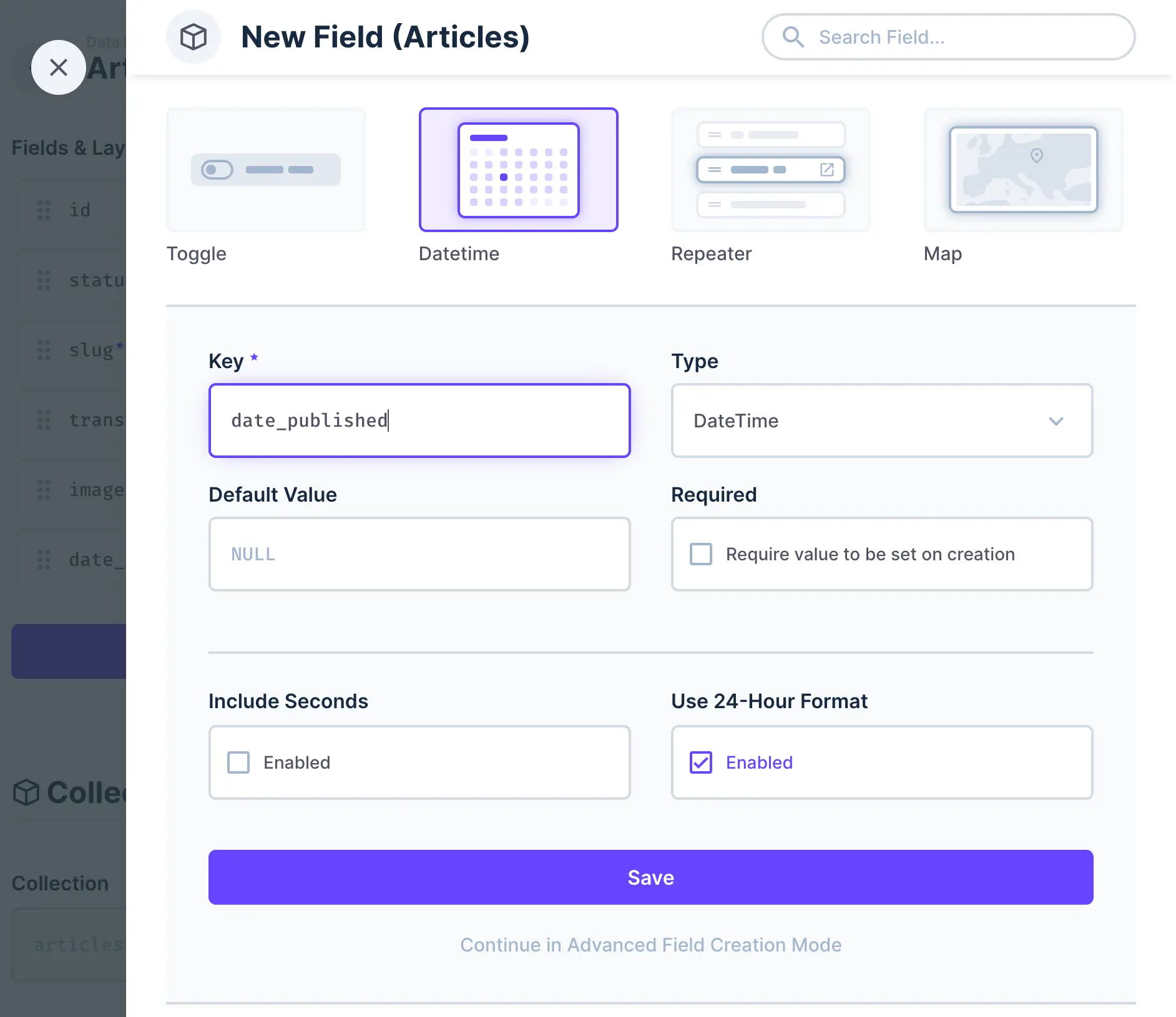
a. Choose Datetime for the Type.
b. For the Key, use something relevant like date_published.
c. Save the Field and your Collection.
Add Some Content and Set a Publish Date
- Create or update an Item inside your Collection
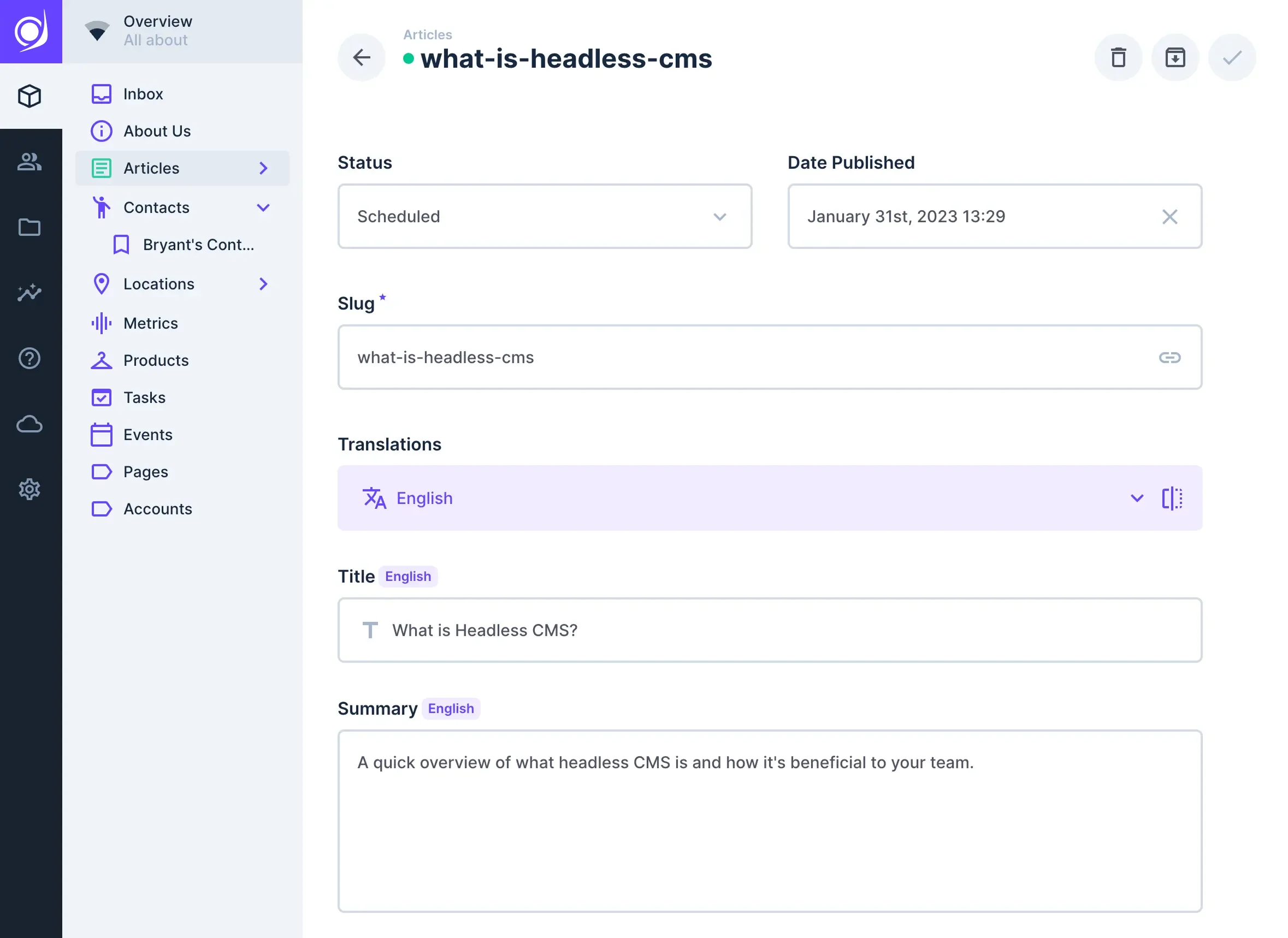
a. Set the status field to scheduled
b. Add a date for the date_published field
c. Add the content for other fields and save the Item
Create and Configure Your Flow
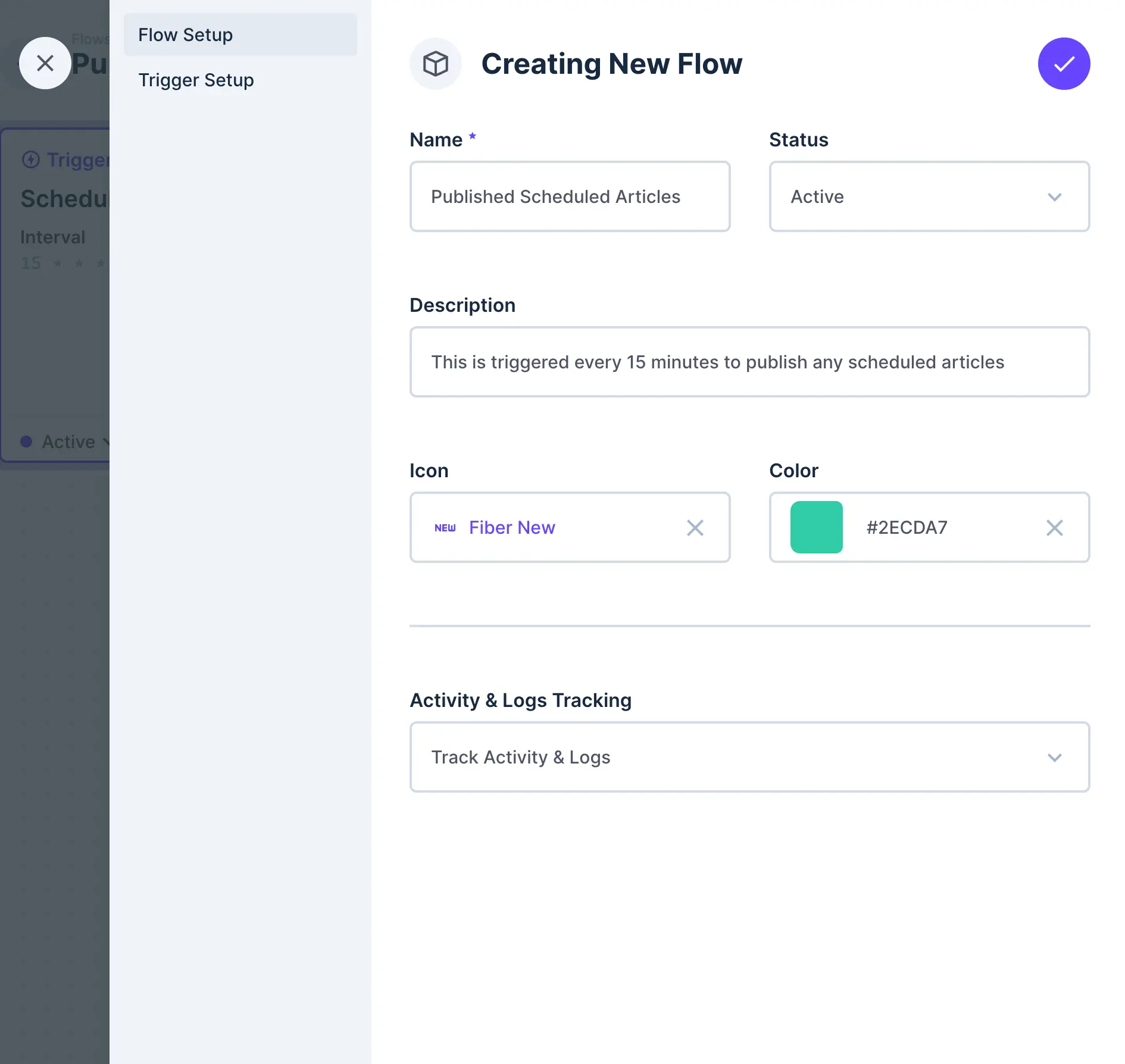
Give it a memorable name and short description like Publish Scheduled Articles.
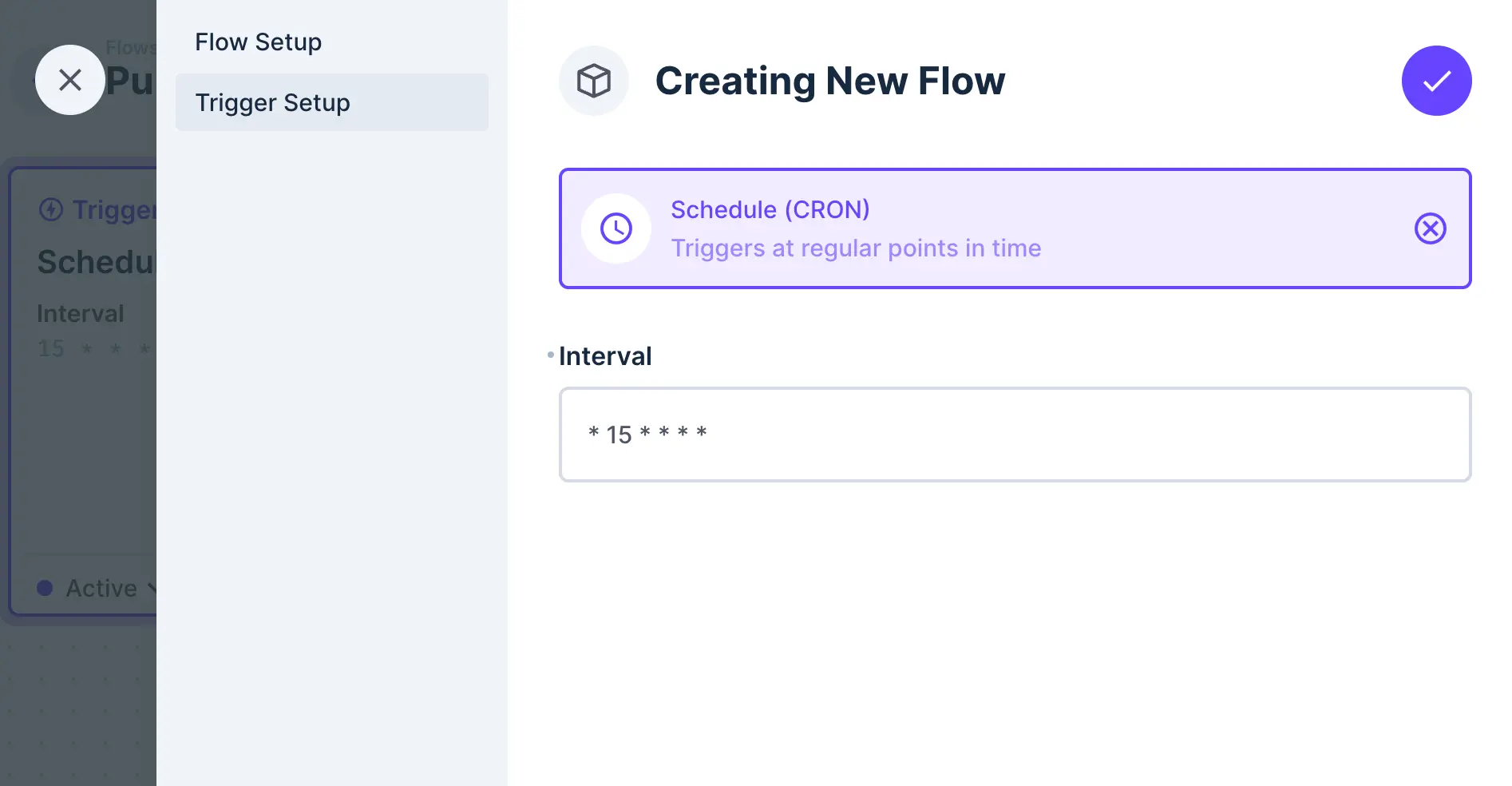
a. For Type, Select Schedule (CRON). This will trigger this flow at regular intervals of time.
b. Add your Interval in proper CRON syntax.
Examples
* 1 * * * *- Would trigger this flow every minute* 15 * * * *– Would trigger this flow every 15 minutes
Add an Operation to Check The Published Date and Update Data
!Inside a d9 Flow, the Create Operation interface is shown. The Name of the operation is "Update Articles". The Key is "update_articles". The type of Operation is "Update Data". The Collection for the operation is "Articles". The Payload for the operation is a JSON object with key - status and value of published. There is also a JSON object for the Query field. A filter that checks that the item status is equal to "scheduled" and the date_published is less than or equal to the current timestamp.
a. For the type of Operation, select Update Item
b. Name your operation, i.e.
Update Articlesor similar.c. Under Collection, choose your content collection i.e.
Articlesin our example.d. Check Emit Events
WARNING
Emit Events will trigger an
item.updateevent in this flow. Be careful when using it in your Flows to avoid creating infinite loops where Flows continuously trigger one another.e. Set your Payload
json{ "status": "published" }f. Add your filter rule in the Query field.
json{ "filter": { "_and": [ { "status": { "_eq": "scheduled" } }, { "date_published": { "_lte": "$NOW" } } ] } }g. Save this Operation
h. Save your Flow
Trigger a New Build for Your Static Site
In this recipe, we'll terminate the flow here because we'll use a separate flow to trigger the build or deployment process for your site. This approach helps keep everything modular and easier to maintain.
If you haven't already, you'll want to configure one of the recipes below.
- Triggering a static site build at Netlify
- Triggering a static site build at Vercel
You checked Emit Events in the Operation during Step 7. This will emit an item.update event which is a trigger for the Flows in the recipes above.
Final Tips
Tips
- Make sure to test your flow several times to ensure everything is working as expected.
- As you add other collections that are published on your static site or frontend, make sure you update this Flow to include those collections in your Trigger.